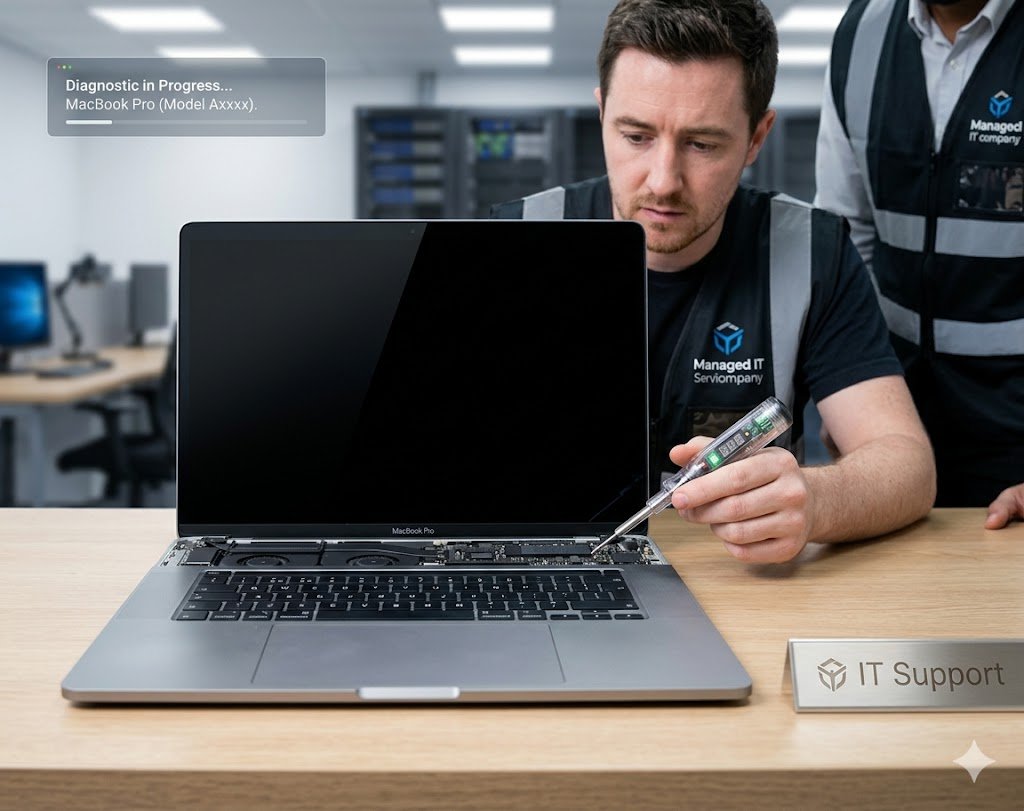
MacBook Not Turning On? Fix It Fast – Start Here Before Panic
If your MacBook is not turning on, it can feel like a complete disaster—especially if you rely on it for work, school, or business. The good news is that in many cases, the issue is not permanent. It may be caused by simple power problems, software crashes, or minor hardware faults.
However, sometimes a MacBook not turning on can also indicate deeper issues such as logic board failure, battery damage, or storage corruption that could risk lost data.
This guide will walk you through MacBook Not Turning On? Fix It Fast steps in a clear, structured way so you can diagnose and possibly fix the problem before seeking professional help.
MacBook Not Turning On? Fix It Fast – Basic Power Checks
1. Check the Charger and Power Source
The most common reason a MacBook is not turning on is a power issue.
Check:
- Is the charger properly connected?
- Is the power outlet working?
- Are there any visible cable damages?
- Try another charging cable or adapter if available
Even a faulty cable can make it seem like your MacBook is dead.
2. Let It Charge for at Least 15–30 Minutes
If your battery is fully drained, the MacBook may not turn on immediately.
Leave it plugged in and wait. Then try turning it on again.
MacBook Not Turning On? Fix It Fast – Forced Startup Methods
3. Try a Force Power On
Press and hold the Power button for 10–15 seconds, then release and press again normally.
This helps reset minor power glitches.
4. Reset the SMC (System Management Controller)
SMC controls:
- Power management
- Battery charging
- Thermal control
Resetting it often fixes startup issues.
For Intel MacBooks:
- Shut down Mac
- Hold Shift + Control + Option + Power button
- Hold for 10 seconds
- Release and restart
For Apple Silicon Macs (M1/M2/M3):
- Simply hold power button for 10–15 seconds and restart
MacBook Not Turning On? Fix It Fast – Screen or Display Issue Check
Sometimes your MacBook is actually ON—but the screen is not displaying anything.
5. Check for Signs of Power
Look for:
- Keyboard backlight
- Fan noise
- Trackpad click response
- Charging sound
If these are present, your MacBook may be working but have a display issue.
Try connecting it to an external monitor.
MacBook Not Turning On? Fix It Fast – Boot and System Recovery
6. Use Recovery Mode
Try booting into recovery mode:
- Hold Command + R while powering on
If it works, your macOS may be corrupted and needs repair or reinstall.
7. Reset NVRAM/PRAM (Intel Macs Only)
This helps fix startup configuration issues.
- Turn off Mac
- Turn on and immediately hold Option + Command + P + R
- Hold for about 20 seconds
MacBook Not Turning On? Fix It Fast – Battery and Hardware Issues
8. Battery Failure Signs
Your MacBook may not turn on due to battery problems if:
- It only works while plugged in
- It shuts down instantly when unplugged
- It shows no charging indicator
Battery replacement may be needed.
9. Logic Board or Internal Damage
If your MacBook had:
- A recent fall
- Liquid exposure
- Overheating
- Electrical surge
Then the issue could be serious hardware failure.
This can also lead to lost data if storage is affected.
MacBook Not Turning On? Fix It Fast – Data Safety Warning
If your MacBook is not turning on:
👉 STOP repeated restart attempts if nothing happens
Why?
- It may worsen hardware damage
- It can corrupt storage
- It increases risk of lost data
Instead, focus on safe diagnosis or professional recovery.
When Your MacBook Needs Professional Repair
If none of the above steps work, your MacBook likely has deeper issues such as:
- Faulty logic board
- Damaged SSD
- Battery failure
- Power IC failure
- Liquid damage inside components
Professional technicians can:
- Diagnose internal faults
- Recover lost data
- Repair or replace damaged parts
- Restore full system functionality
👉 Internal Service Link:
https://www.ridgewaycomputers.com/macbook-repair
👉 Data Recovery Support:
https://www.ridgewaycomputers.com/data-recovery
Common Reasons Why MacBook Won’t Turn On
Here are the most frequent causes:
- Dead battery
- Faulty charger
- macOS crash
- Hardware failure
- Liquid damage
- Overheating shutdown
- SSD corruption
- Logic board issues
Understanding the root cause helps prevent future breakdowns.
MacBook Not Turning On? Fix It Fast – Prevention Tips
To avoid future issues:
- Use original Apple chargers
- Avoid overheating
- Keep macOS updated
- Don’t ignore battery warnings
- Backup files regularly
- Avoid liquid near device
Prevention reduces both repair costs and lost data risks.
What NOT to Do When MacBook Is Not Turning On
Avoid these mistakes:
❌ Do not keep pressing power repeatedly
❌ Do not open the device yourself
❌ Do not use random online “fix tools”
❌ Do not ignore signs of hardware damage
These actions can make recovery harder.
Internal Links for SEO Strength
- MacBook Screen Flickering Fix Guide
- Laptop Not Turning On Troubleshooting
- Data Recovery Services Toronto
- Computer Stuck on Startup Fixes
External Helpful Resources
- https://support.apple.com/mac-startup
- https://support.apple.com/mac-battery
- https://www.ifixit.com (MacBook repair guides)