No Display on Monitor? Try These 7 Powerful Fixes That Work Fast (2026 Guide)
If you’re facing a no display on monitor issue, it can be alarming. You turn on your PC or laptop, everything seems to power up—fans spin, lights are on—but the screen stays completely black. This is one of the most common workstation problems for both home users and businesses.
The good news is that a no display on monitor issue does not always mean hardware failure. In many cases, it is caused by loose connections, incorrect settings, faulty cables, or simple hardware seating problems.
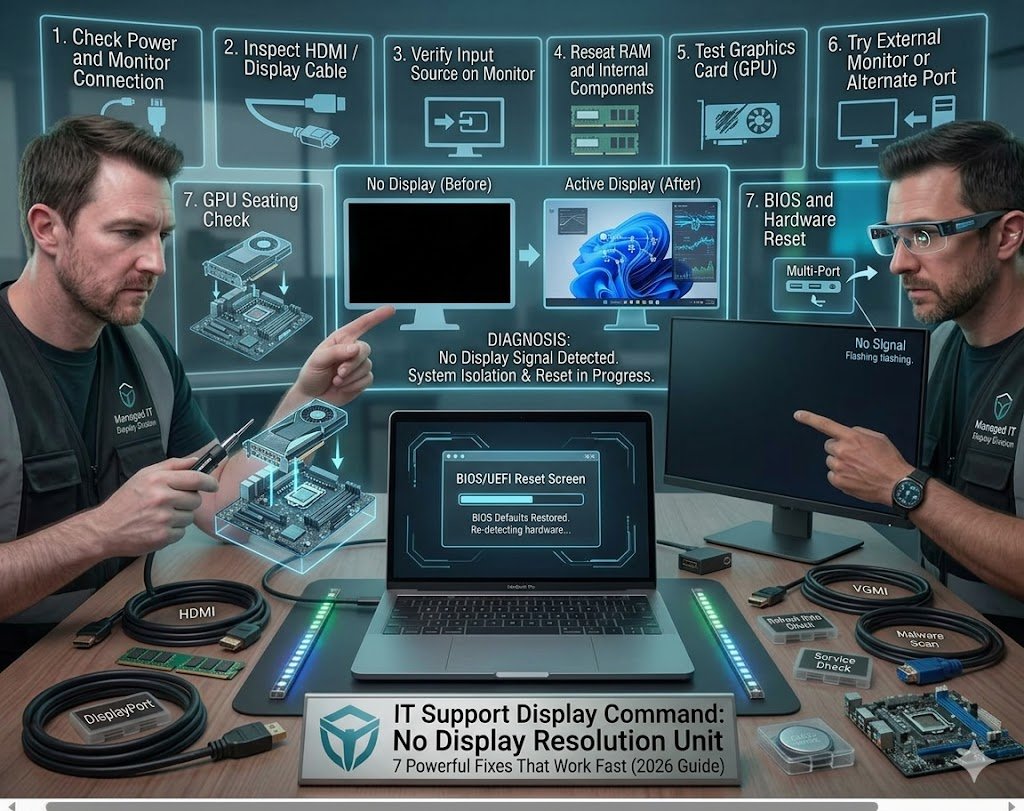
In this guide, we’ll walk through 7 powerful and practical fixes to help you get your display back quickly.
Table of Contents
- Check Power and Monitor Connection
- Inspect HDMI / Display Cable
- Verify Input Source on Monitor
- Reseat RAM and Internal Components
- Test Graphics Card (GPU)
- Try External Monitor or Alternate Port
- BIOS and Hardware Reset
No Display on Monitor: Check Power and Monitor Connection
The first step in fixing a no display on monitor issue is to ensure the basics are correct.
Check:
- Is the monitor powered ON?
- Is the power cable securely connected?
- Are the power indicator lights visible?
- Try a different power outlet
Sometimes the issue is as simple as a loose power cable or a faulty extension board. If the monitor is not receiving power, nothing else will work.
No Display on Monitor: Inspect HDMI / Display Cable
A damaged or loose cable is one of the most common causes of no display on monitor problems.
Follow these steps:
- Disconnect and reconnect HDMI, DisplayPort, or VGA cable
- Try a different cable if available
- Check for bent pins or physical damage
- Ensure both ends are tightly secured
Even a slightly loose connection can prevent signal transmission, resulting in a blank screen.
No Display on Monitor: Verify Input Source on Monitor
Many users assume their system is broken when the monitor is simply set to the wrong input.
To fix:
- Press the “Input” or “Source” button on the monitor
- Select the correct input (HDMI 1, HDMI 2, DisplayPort, etc.)
- Wait a few seconds for signal detection
If the input source is incorrect, the monitor will show “No Signal” even when everything is working properly.
No Display on Monitor: Reseat RAM and Internal Components
If you are using a desktop PC, loose RAM or internal components can cause a no display on monitor issue.
To troubleshoot:
- Turn off power and unplug system
- Open the PC case carefully
- Remove RAM sticks and reinstall them firmly
- Ensure GPU (graphics card) is properly seated
Dust buildup or slight movement during transport can disrupt internal connections, preventing display output.
No Display on Monitor: Test Graphics Card (GPU)
A faulty or improperly connected GPU is another major cause of no display on monitor problems.
Try this:
- Ensure GPU power cables are connected
- Remove and reinsert GPU
- If your CPU has integrated graphics, connect monitor to motherboard port
- Test system without dedicated GPU
If the display works without the GPU, the issue may be with the graphics card itself.
No Display on Monitor: Try External Monitor or Alternate Port
To isolate the problem, test your system with another display device.
- Connect laptop or PC to a different monitor
- Try another HDMI or DisplayPort output
- Use a TV as a secondary display
Results:
- If external monitor works → original monitor issue
- If nothing works → PC or GPU issue
This step helps you quickly narrow down the cause of the no display on monitor issue.
No Display on Monitor: BIOS and Hardware Reset
Sometimes system settings or firmware glitches can block display output.
Try a reset:
- Power off system completely
- Disconnect power cable
- Hold power button for 10–15 seconds
- Reconnect and restart
For desktops, you can also reset CMOS battery on motherboard to restore BIOS defaults.
This can fix hidden configuration issues causing no display on monitor problems.
Internal IT Support Resources
If the issue persists, you may need deeper troubleshooting:
- /desktop-no-power-issues
- /graphics-card-repair
- /workstation-setup-support
- /laptop-display-troubleshooting
These help diagnose advanced hardware and system-level problems.