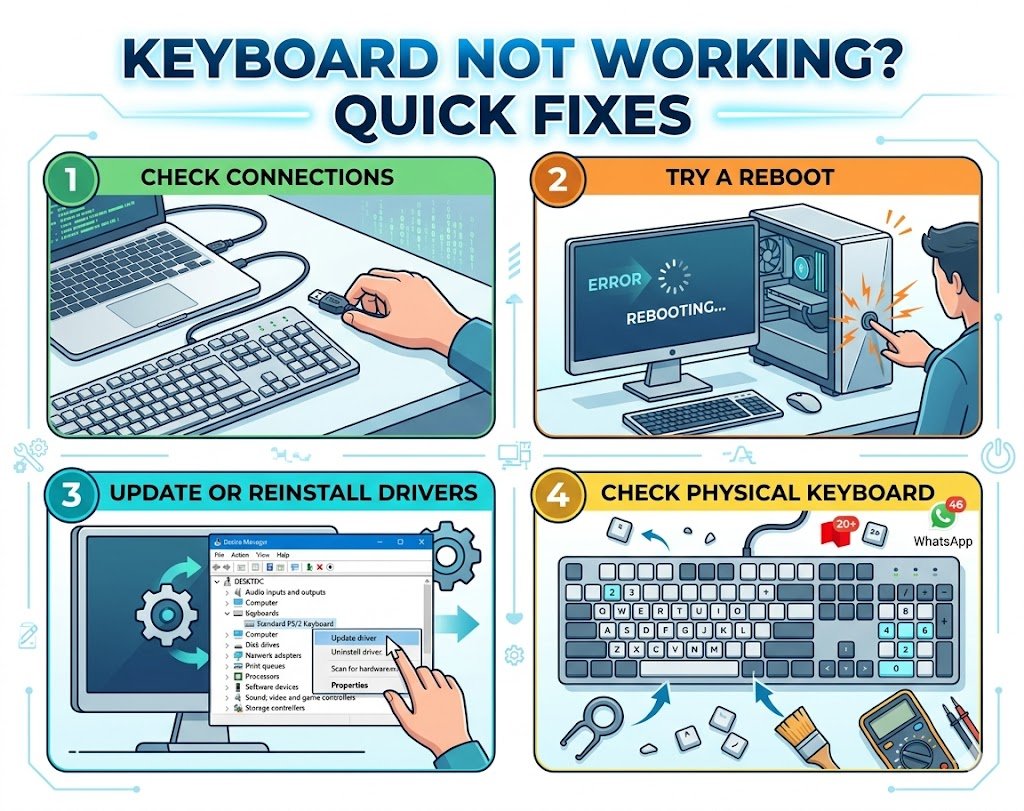
If you are facing a keyboard not working issue on your laptop or desktop, it can completely disrupt your work. Whether keys are unresponsive, typing random characters, or the keyboard has stopped working entirely, this is one of the most frustrating workstation problems.
The good news is that a keyboard not working problem is usually not permanent. In most cases, it is caused by simple issues like driver errors, loose connections, software glitches, or incorrect settings.
In this guide, we’ll walk through 7 quick and practical fixes for keyboard not working, so you can get back to typing without delays.
Table of Contents
- Check Physical Connection and USB Ports
- Restart Your Computer
- Fix Keyboard Driver Issues
- Check Language and Input Settings
- Disable Filter Keys and Accessibility Settings
- Test Keyboard on Another Device
- Check for Hardware Damage
Keyboard Not Working: Check Physical Connection and USB Ports
The first and most basic reason for a keyboard not working issue is a loose or faulty connection.
If you are using a wired keyboard:
- Unplug and reconnect the USB cable
- Try a different USB port
- Avoid USB hubs and connect directly to the computer
- Check for dust or damage in the port
If you are using a wireless keyboard:
- Replace or recharge batteries
- Re-pair the Bluetooth connection
- Ensure the USB receiver is properly inserted
A weak connection is often the simplest explanation for a keyboard not working problem.
Keyboard Not Working: Restart Your Computer
It may sound basic, but restarting your system often fixes a keyboard not working issue instantly.
A restart helps:
- Reset temporary system glitches
- Reload keyboard drivers
- Clear background software conflicts
Before trying advanced troubleshooting, always restart your PC or laptop. In many cases, this alone resolves the issue.
Keyboard Not Working: Fix Keyboard Driver Issues
Driver problems are a major cause of keyboard not working errors, especially after Windows updates.
To fix this:
- Right-click Start Menu
- Open Device Manager
- Expand “Keyboards” section
- Right-click your keyboard device
- Select “Update driver”
If updating does not work:
- Uninstall the driver
- Restart your computer
- Windows will reinstall it automatically
You can also download official drivers from:
A corrupted driver can completely disable keyboard input, so this step is very important for resolving keyboard not working issues.
Keyboard Not Working: Check Language and Input Settings
Sometimes your keyboard is working, but the input language is incorrect, making it seem like a keyboard not working problem.
To fix this:
- Go to Settings → Time & Language → Language
- Ensure correct language (e.g., English US/UK) is selected
- Check keyboard layout settings
- Remove unnecessary input languages
Also press:
- Windows + Spacebar to switch input languages
Incorrect layout settings can make keys produce wrong characters or appear unresponsive.
Keyboard Not Working: Disable Filter Keys and Accessibility Settings
Windows accessibility features like Filter Keys can interfere with normal typing and cause a keyboard not working experience.
To disable it:
- Go to Settings → Accessibility → Keyboard
- Turn OFF “Filter Keys”
- Turn OFF “Sticky Keys” if enabled
These features are designed for accessibility but can delay or block key inputs if accidentally enabled.
Keyboard Not Working: Test Keyboard on Another Device
To identify whether the issue is hardware or software, test your keyboard on another system.
- Plug the keyboard into another PC or laptop
- If it works → issue is with your computer
- If it doesn’t work → keyboard is likely faulty
For wireless keyboards, test with new batteries or a different USB receiver.
This step is crucial for diagnosing a keyboard not working problem accurately.
Keyboard Not Working: Check for Hardware Damage
If none of the software fixes work, the issue may be physical damage.
Common hardware causes include:
- Liquid spill damage
- Worn-out key switches
- Internal circuit failure
- Cable damage (for wired keyboards)
Signs of hardware failure:
- Multiple keys stop working
- Keyboard works intermittently
- No response even during BIOS screen
If the keyboard is physically damaged, replacement is often the best solution.
Advanced Tip: Check BIOS/UEFI Response
If your keyboard does not work even before Windows loads:
- Restart and enter BIOS (usually F2, DEL, or ESC)
- If keyboard does not respond in BIOS → hardware issue
- If it works in BIOS but not Windows → software issue
This is a powerful diagnostic step for keyboard not working problems.
Internal Troubleshooting Links
You may also find these helpful:
- /laptop-input-issues
- /usb-device-not-detected
- /workstation-setup-support
- /windows-driver-fix
These guides help resolve deeper system-level input issues.