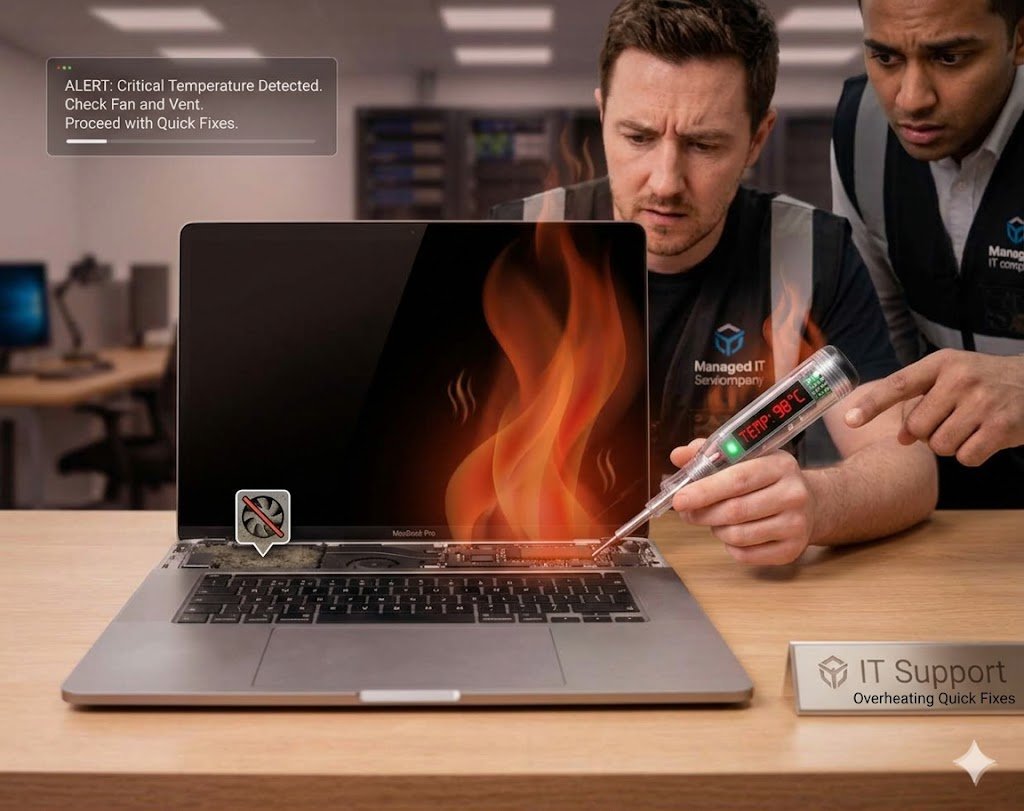
MacBook Overheating? Quick Fixes – Why This Happens
If your MacBook is overheating, it is not just uncomfortable—it is a warning sign. Overheating can slow down performance, damage internal components, drain battery life, and even lead to unexpected shutdowns.
Modern MacBooks from Apple are designed to manage heat efficiently, but heavy workloads, dust buildup, software issues, or poor ventilation can still cause temperature spikes.
In some cases, ignoring overheating can also lead to long-term hardware damage and potential lost data if the system crashes during critical tasks.
This guide will walk you through MacBook Overheating? Quick Fixes that you can apply immediately to cool your device and prevent future problems.
MacBook Overheating? Quick Fixes – First Signs You Should Never Ignore
Before a MacBook becomes dangerously hot, it usually shows early warning signs:
- Fan running loudly or constantly
- Keyboard or bottom panel getting very hot
- System lag or slow performance
- Apps freezing or crashing
- Sudden shutdowns
- Battery draining faster than normal
If you notice these signs, your MacBook is already under thermal stress.
MacBook Overheating? Quick Fixes – Immediate Actions
1. Move Your MacBook to a Cool Surface
The first and simplest step is airflow improvement.
Avoid using your MacBook on:
- Beds
- Sofas
- Pillows
- Blankets
Instead, place it on:
- A flat desk
- A cooling stand
- A hard, ventilated surface
Blocking airflow is one of the biggest causes of overheating.
2. Close Heavy Applications Immediately
Too many active apps increase CPU usage and heat generation.
Open Activity Monitor and close:
- Chrome tabs (especially many tabs)
- Video editing software
- Games
- Background sync apps
This instantly reduces processor load and temperature.
3. Restart Your MacBook
A simple restart can fix:
- Memory leaks
- Background processes stuck running
- Temporary software bugs
Restarting gives your system a fresh start and can significantly reduce heat.
MacBook Overheating? Quick Fixes – System-Level Solutions
4. Check CPU Usage
Open Activity Monitor → CPU tab.
Look for apps using excessive CPU power.
If one app is constantly using high CPU:
- Force quit it
- Reinstall it if needed
- Check for updates
High CPU usage is a major overheating trigger.
5. Update macOS Software
Outdated software can cause inefficient performance and overheating.
Go to:
System Settings → Software Update
Installing updates ensures:
- Better thermal management
- Bug fixes
- Improved performance optimization
MacBook Overheating? Quick Fixes – Hardware Checks
6. Clean Air Vents and Dust Build-Up
Dust inside vents can block airflow and trap heat.
Check:
- Side vents
- Keyboard airflow areas
- Fan outlets
Use compressed air (carefully) or get professional cleaning.
Dust buildup is one of the most overlooked causes of overheating.
7. Check Charging Cable and Battery Health
Faulty charging components can increase heat.
Look for:
- Overheating while charging only
- Battery draining quickly
- Swollen battery signs
If your MacBook overheats only when plugged in, the charger or battery may be the issue.
MacBook Overheating? Quick Fixes – Advanced Solutions
8. Reset SMC (System Management Controller)
SMC controls thermal and power management in Intel-based MacBooks.
Resetting it can fix overheating issues.
Steps (Intel Macs):
- Shut down MacBook
- Hold Shift + Control + Option + Power for 10 seconds
- Release and restart
For Apple Silicon MacBooks:
- Simply restart or power off for 30 seconds and turn back on
9. Reduce Browser and Background Load
Browsers like Chrome are known for high memory usage.
To reduce heat:
- Limit open tabs
- Remove unused extensions
- Use Safari for lighter performance
- Disable auto-sync apps temporarily
MacBook Overheating? Quick Fixes – Hidden Risks You Should Know
Overheating is not just a comfort issue—it affects system health.
Long-term overheating can cause:
- Battery degradation
- Slower performance
- Logic board damage
- SSD failure risk
- Unexpected shutdowns
In severe cases, overheating can contribute to lost data if the system crashes during file operations.
When MacBook Overheating Becomes Serious
If your MacBook consistently overheats even after trying fixes, it may indicate deeper issues:
- Faulty internal fan
- Thermal paste degradation
- Malware or hidden processes
- Hardware failure
- Liquid damage history
At this stage, professional diagnosis is recommended.
Professional Help for Overheating MacBooks
If basic troubleshooting does not solve the issue, technicians can:
- Clean internal cooling system
- Replace thermal paste
- Diagnose motherboard issues
- Repair fan systems
- Recover lost data if system instability occurs
👉 MacBook Repair Service:
https://www.ridgewaycomputers.com/macbook-repair
👉 Data Recovery Support:
https://www.ridgewaycomputers.com/data-recovery
MacBook Overheating? Quick Fixes – Prevention Tips
To prevent overheating in the future:
- Always use MacBook on hard surfaces
- Keep macOS updated
- Avoid running too many heavy apps
- Clean vents regularly
- Monitor CPU usage
- Avoid blocking airflow
Preventive care reduces both repair costs and system failures.
What NOT to Do When MacBook Overheats
Avoid these mistakes:
❌ Do not place MacBook in fridge/freezer
❌ Do not ignore repeated overheating
❌ Do not cover vents while using
❌ Do not use unknown “cooling software”
❌ Do not continue heavy usage while overheating
These can worsen damage.
Internal Links for SEO Boost
- MacBook Not Turning On Fix Guide
- Laptop Not Charging Troubleshooting
- Computer Overheating Solutions
- Data Recovery Services Toronto
External Helpful Resources
- https://support.apple.com/mac-battery
- https://support.apple.com/mac-performance
- https://www.ifixit.com (MacBook cooling system guides)