Laptop not turning on? it can feel like a serious failure—but in most cases, the problem is simple and fixable at home.
Many users assume their laptop is “dead,” when in reality it is often:
- a charging issue
- a power reset problem
- a battery failure
- or a display issue
This guide will walk you through 5 practical fixes that solve the majority of laptop not turning on without needing technical skills or tools.
Why your Laptop Won’t Turn On – 5 quick fixes!
Before jumping into fixes, it helps to understand what could be happening:
- Battery completely drained or faulty
- Charger not supplying power
- Internal power glitch
- Loose DC charging port
- RAM or hardware issue
- Screen not displaying (false “dead” laptop)
Most of these are not permanent failures, and can often be resolved in minutes.
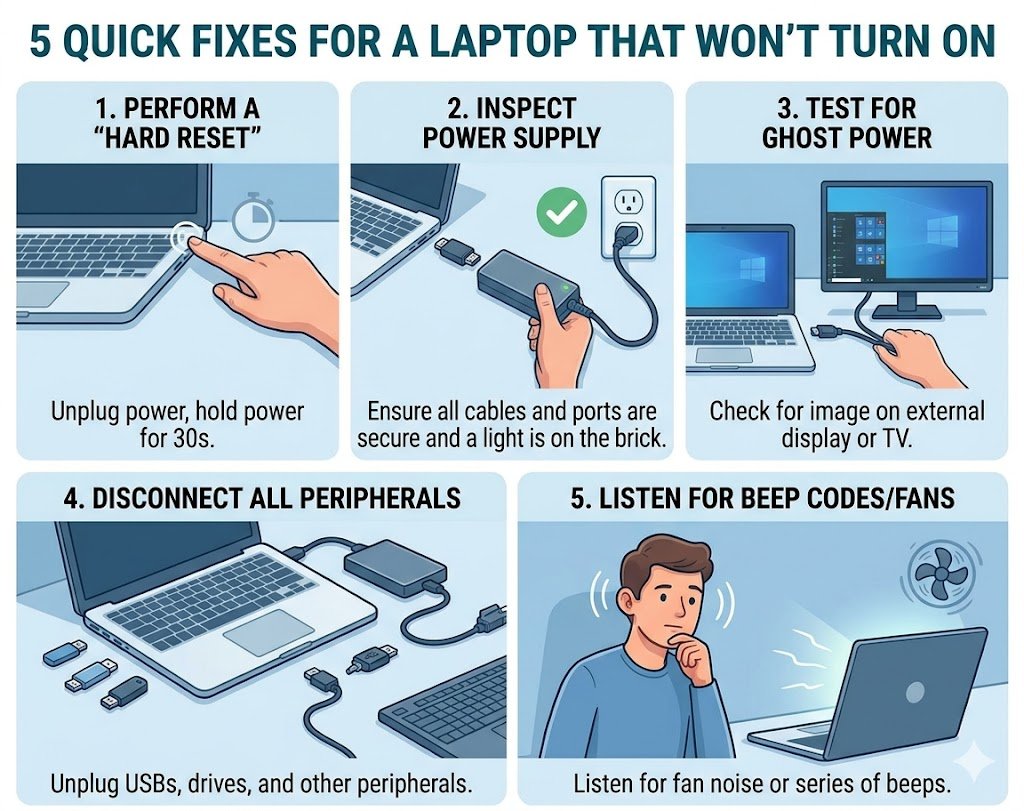
Fix #1: Check the Charger and Power Source
This is the most common reason a laptop does not turn on.
What to check:
- Is the charger properly plugged in?
- Try a different wall socket
- Check if charger LED is on (if available)
- Look for damage in cable or adapter
Simple test:
If possible, try another compatible charger.
Why this works:
A faulty charger is often the real reason for laptop not turning on.
Fix #2: Do a Hard Reset (Power Drain Method)
A power reset clears hidden electrical glitches inside the laptop.
Steps:
- Unplug charger
- Remove battery (if removable)
- Hold power button for 30 seconds
- Reconnect charger only
- Try turning it on
If battery is non-removable:
- Hold power button for 30–40 seconds while unplugged
Why this works:
It resets internal power circuits and clears temporary faults and can resolve laptop not turning on.
Fix #3: Check for “Fake Black Screen” Issue
Sometimes the laptop is ON—but the screen is not showing anything.
Signs:
- Power light is on
- Fan noise is running
- Keyboard lights respond
What to try:
- Shine a flashlight on the screen
- Connect to an external monitor
- Press brightness keys (Fn + brightness key)
Why this happens:
- Display backlight failure
- Graphics issue
- Screen connection loose
This is one of the most misunderstood laptop problems.
Fix #4: Disconnect All External Devices
External devices can block startup in some cases.
Remove everything:
- USB drives
- External mouse/keyboard
- Memory cards
- External hard drives
Then try turning on again.
Why this works:
A faulty USB device can interrupt the boot process.
Fix #5: Check Battery or Charging Port Issues
If the laptop still does not respond, the issue may be physical.
Look for:
- Loose charging port (wiggles when plugged in)
- No charging light even with adapter
- Battery not holding charge
Try this:
-
Plug charger in and gently adjust the connector
- Test without battery (if removable)
Why this matters:
A damaged DC jack or battery can completely block power flow. Blocked power flow can choke your laptop and results in laptop not turning on.
Bonus Fix: Try a Different Charger (Very Important)
Even if your charger “looks fine,” it may still be dead internally.
- Chargers often fail without visible damage
- Voltage may drop under load
👉 Testing with another charger is one of the fastest ways to confirm the issue.
When the Problem Is Hardware Failure
If none of the above works, the issue may be more serious:
Possible causes:
- Motherboard failure
- Short circuit
- Burnt power IC
- Liquid damage
- RAM failure
Warning signs:
- No lights at all
- Burning smell
- Random shutdown attempts
- No response even after reset
At this stage, professional repair is recommended if after all laptop not turning on.
How to Prevent Laptop Power Issues
A few habits can prevent future problems:
- Always use original or certified chargers
- Avoid overcharging overnight constantly
- Keep charging port clean
- Do not force charger into loose ports
- Use a surge protector
Conclusion: Most Laptops Are Not Dead—Just Blocked
If your laptop is not turning on, don’t assume the worst.
In most cases, the issue is:
- charger failure
- power glitch
- display confusion
- or loose connection
By following these 5 simple fixes, you can often resolve laptop not turning on.
If nothing works, then it may be hardware-related—but at least you’ve ruled out the common causes first.