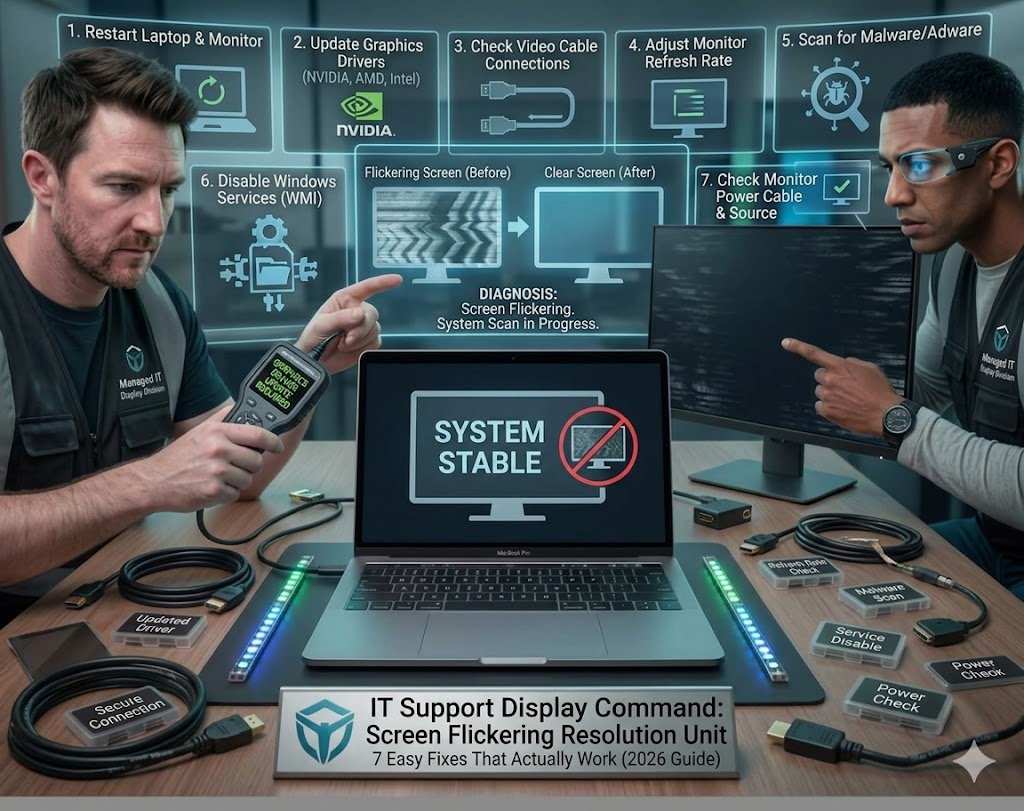
If you’re dealing with screen flickering, you already know how frustrating it can be. One moment everything looks normal, and the next your display starts flashing, dimming, or rapidly blinking. This issue is common on both laptops and desktop monitors and can be caused by software glitches, faulty drivers, bad cables, or even hardware problems.
The good news is that most screen flickering issues can be fixed without replacing your device. In this guide, we’ll walk through 7 easy and practical fixes you can try right away.
Table of Contents
- Check Display Cable and Connections
- Adjust Refresh Rate Settings
- Update or Reinstall Graphics Drivers
- Disable Problematic Apps or Services
- Check for Windows Display Issues
- Test with External Monitor
- Check for Hardware Problems
Screen Flickering: Check Display Cable and Connections
One of the most common reasons for screen flickering on desktop setups is a loose or damaged cable.
Start with these steps:
- Unplug and reconnect HDMI, DisplayPort, or VGA cables
- Try a different cable if available
- Inspect connectors for bends or dust
- Ensure the cable is firmly connected on both ends
If the flickering stops after changing the cable, you’ve found the issue. Poor-quality or damaged cables often interrupt the display signal and cause unstable visuals.
Screen Flickering: Adjust Refresh Rate Settings
Incorrect refresh rate settings can easily trigger screen flickering, especially on external monitors.
To fix this on Windows:
- Go to Settings → System → Display
- Click Advanced Display Settings
- Check the refresh rate (60Hz, 120Hz, etc.)
- Match it to your monitor’s recommended setting
If the refresh rate is too high or incorrectly set, your screen may flicker or appear unstable. Lowering or correcting it often resolves the issue instantly.
Screen Flickering: Update or Reinstall Graphics Drivers
Outdated or corrupted drivers are a major cause of screen flickering, especially after Windows updates.
Here’s what you should do:
- Open Device Manager
- Expand Display Adapters
- Right-click your GPU (Intel, NVIDIA, AMD)
- Click Update Driver
If the issue continues, uninstall the driver and reinstall the latest version from the manufacturer:
- NVIDIA: https://www.nvidia.com/Download/index.aspx
- AMD: https://www.amd.com/en/support
- Intel: https://www.intel.com/content/www/us/en/download-center/home.html
After reinstalling, restart your system and check if the flickering is gone.
Screen Flickering: Disable Problematic Apps or Services
Sometimes, screen flickering is caused by software conflicts rather than hardware.
Common culprits include:
- Antivirus software
- Screen recording tools
- Overlays (Discord, Xbox Game Bar, etc.)
- Outdated productivity apps
To test this:
- Restart your computer in Safe Mode
- If flickering stops, a software conflict is likely
- Disable startup apps one by one to find the issue
This method helps isolate the root cause without guessing.
Screen Flickering: Check for Windows Display Issues
Windows display settings or system bugs can also cause screen flickering, especially after updates.
Try these fixes:
- Press Windows + P and switch display mode
- Go to Settings → Display → Scale and resolution
- Set recommended resolution
- Run Windows Update to install latest patches
Sometimes incorrect scaling or resolution mismatches can cause instability in the display output.
Screen Flickering: Test with External Monitor
To determine whether the issue is hardware or software, connect your device to an external monitor.
- If both screens flicker → likely GPU or software issue
- If only laptop screen flickers → possible internal display issue
- If external monitor is stable → laptop screen or cable problem
This is one of the most important diagnostic steps for screen flickering problems.
Screen Flickering: Check for Hardware Problems
If none of the software fixes work, the issue may be hardware-related.
Possible hardware causes include:
- Failing display panel
- Damaged GPU
- Loose internal display cable
- Overheating components
Hardware issues often require professional repair, especially if flickering worsens over time or appears during boot-up.
Internal Resources for Troubleshooting
You may also find these helpful:
- /laptop-display-problems
- /desktop-monitor-issues
- /graphics-driver-support
- /workstation-troubleshooting