If your HDMI not working issue is stopping you from connecting your laptop to a monitor, TV, or projector, you’re not alone. This is one of the most common workstation setup problems in both home and office environments. The good news is that most HDMI problems are not hardware failures—they are simple configuration, cable, or driver issues that can be fixed quickly.
In this guide, we’ll walk you through 5 powerful and practical fixes for HDMI not working, so you can restore your display connection without stress or expensive repairs.
Table of Contents
- HDMI Not Working: Check the Cable and Ports
- HDMI Not Working: Verify Display Input Source
- HDMI Not Working: Update or Reinstall Graphics Drivers
- HDMI Not Working: Adjust Display Settings in Windows
- HDMI Not Working: Test Hardware and External Devices
- When to Get Professional Help
<h2>HDMI Not Working: Check the Cable and Ports</h2>
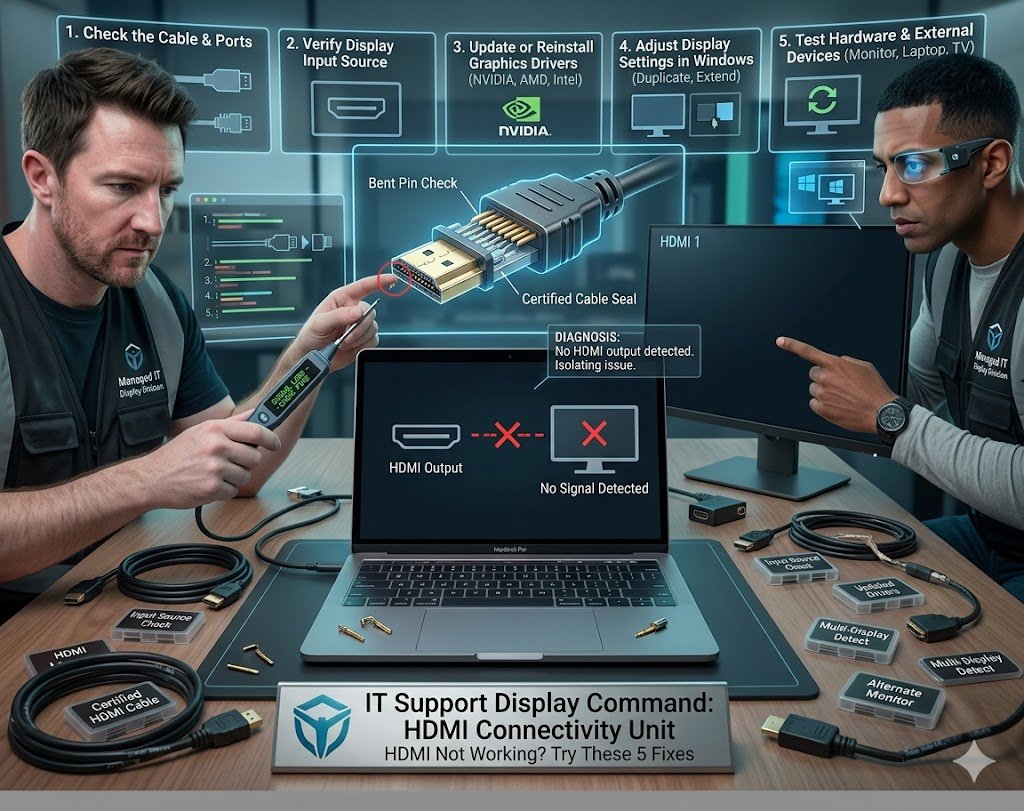
The first and most common reason for HDMI not working is a faulty or loosely connected cable.
Start with the basics:
- Unplug and replug the HDMI cable on both ends
- Try a different HDMI cable
- Inspect the HDMI port for dust or damage
- Test the cable on another device
Even a slightly bent HDMI pin can stop the signal completely. If your setup suddenly stopped working, cable failure is often the culprit.
👉 Pro Tip: Always use certified HDMI cables for stable performance.
<h2>HDMI Not Working: Verify Display Input Source</h2>
Many users assume the HDMI port is broken, but the TV or monitor is simply set to the wrong input source.
On your display device:
- Press “Input” or “Source” on the remote
- Select the correct HDMI port (HDMI 1, HDMI 2, etc.)
- Wait a few seconds for the signal to detect
If the wrong input is selected, your screen will stay black even if everything is working fine.
This is one of the easiest fixes for HDMI not working, yet it is often overlooked.
<h2>HDMI Not Working: Update or Reinstall Graphics Drivers</h2>
Outdated or corrupted graphics drivers are a major cause of HDMI not working on Windows laptops and desktops.
To fix this:
- Open Device Manager
- Expand “Display Adapters”
- Right-click your GPU (Intel, NVIDIA, AMD)
- Select “Update driver”
If updating doesn’t work, uninstall and reinstall the driver from the manufacturer’s website:
- NVIDIA Drivers: https://www.nvidia.com/Download/index.aspx
- AMD Drivers: https://www.amd.com/en/support
- Intel Drivers: https://www.intel.com/content/www/us/en/download-center/home.html
After reinstalling, restart your system and test the HDMI connection again.
<h2>HDMI Not Working: Adjust Display Settings in Windows</h2>
Sometimes Windows simply doesn’t detect the second screen automatically.
To fix HDMI not working due to display settings:
- Press Windows + P
- Select:
- Duplicate (mirror screen)
- Extend (dual monitor setup)
- Second screen only
You can also manually check:
- Settings → System → Display
- Click “Detect” under Multiple Displays
If your monitor still doesn’t appear, your system may be defaulting to the wrong output mode.
<h2>HDMI Not Working: Test Hardware and External Devices</h2>
If the issue continues, you need to isolate whether the problem is with your device or the external display.
Try the following:
- Connect your laptop to a different monitor or TV
- Test a different device (like another laptop) with the same monitor
- Use another HDMI port if available
If multiple devices fail, the issue is likely the monitor or cable. If only one device fails, your laptop HDMI port or GPU may be the issue.
<h2>When to Get Professional Help</h2>
If you’ve tried all the above and HDMI not working still persists, the problem may involve:
- Damaged HDMI port
- GPU hardware failure
- Motherboard-level issue
- Internal display routing problem
At this point, professional diagnostics is recommended. A technician can test the hardware and determine whether repair or replacement is needed.
👉 You can learn more about system troubleshooting here:
Internal IT Support Resources
If you manage business systems or workstation setups, you may also want to explore:
- /workstation-setup-support
- /laptop-display-issues
- /managed-it-services
- /hardware-troubleshooting
These resources help prevent recurring HDMI and display failures in office environments.
Image: HDMI Not Working Troubleshooting Setup
Final Thoughts
The HDMI not working issue can feel frustrating, especially when you rely on external displays for work, presentations, or entertainment. However, in most cases, the problem is not serious. It usually comes down to cable issues, incorrect input selection, driver problems, or simple display settings.
By following these 5 powerful fixes, you can quickly restore your HDMI connection and avoid unnecessary downtime.
If the issue persists after all troubleshooting steps, it’s best to seek professional IT support to avoid further hardware damage.