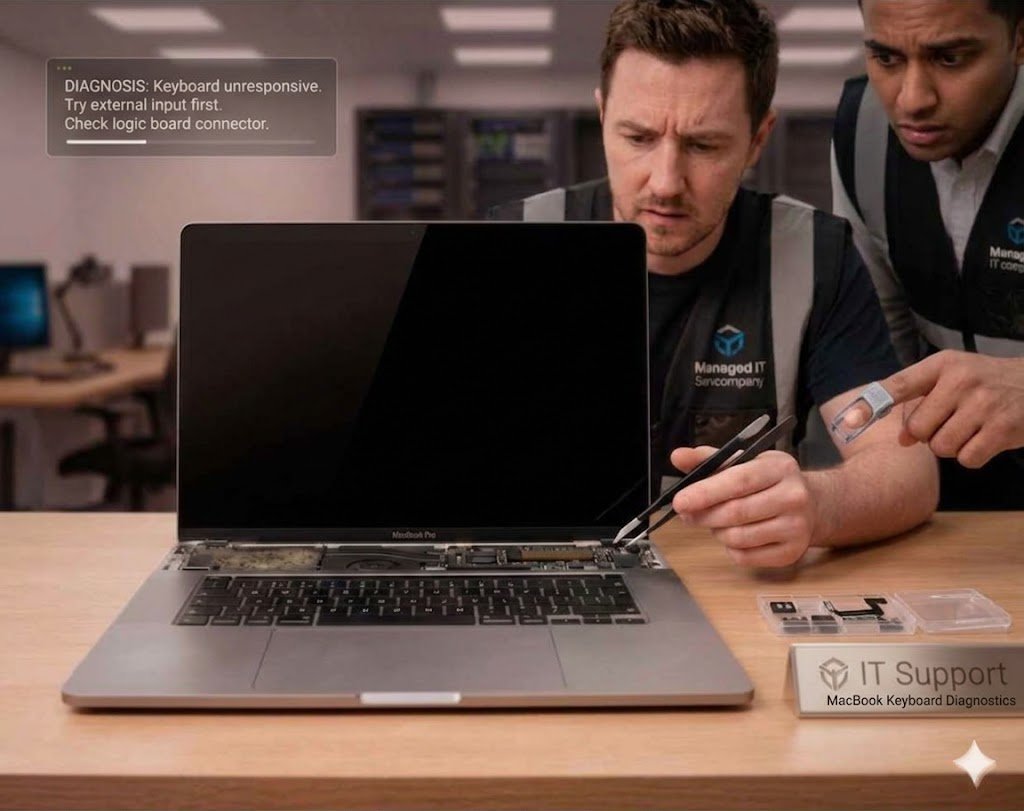
MacBook Keyboard Not Working? Try This Before Replacing It
If your MacBook keyboard is not working, don’t panic. This is a common issue across devices made by Apple and it can often be fixed without expensive repairs.
A non-working keyboard can be caused by software glitches, dust buildup, macOS bugs, or even hardware failure. In some cases, it may also appear alongside lagging performance or system freezing, which increases the risk of lost data if not handled carefully.
This guide will walk you through MacBook Keyboard Not Working? Try This troubleshooting steps that are simple, effective, and safe.
MacBook Keyboard Not Working? Try This – First Quick Checks
1. Restart Your MacBook Immediately
The simplest fix is often the most effective.
Restarting clears:
- Temporary system bugs
- Frozen input drivers
- Background conflicts
After restart, test your keyboard again.
2. Check If It’s a Software or Hardware Issue
Before assuming damage, test:
- Does the keyboard work in login screen?
- Does an external keyboard work?
- Does the trackpad still respond?
If external keyboards work, the issue is likely internal.
3. Clean the Keyboard Surface
Dust, crumbs, or debris can block keys.
Try:
- Turning MacBook upside down gently
- Light tapping
- Using compressed air (carefully at an angle)
Avoid liquids or harsh cleaning tools.
MacBook Keyboard Not Working? Try This – Settings & System Fixes
4. Check Keyboard Settings
Go to:
System Settings → Keyboard
Make sure:
- Input source is correct
- Sticky Keys is OFF
- Slow Keys is OFF
Accessibility settings can sometimes interfere with typing.
5. Update macOS
Outdated software can cause keyboard malfunction.
Update via:
System Settings → Software Update
Updates fix:
- Input lag
- Driver bugs
- System conflicts
Keeping macOS updated is essential for stable performance.
MacBook Keyboard Not Working? Try This – Advanced Fixes
6. Reset NVRAM (Intel Macs Only)
NVRAM stores system settings that affect input devices.
Steps:
- Shut down Mac
- Turn on and hold Option + Command + P + R
- Hold for 20 seconds
This can fix keyboard recognition issues.
7. Reset SMC (System Management Controller)
SMC controls hardware functions like:
- Power
- Battery
- Input devices
Reset steps (Intel MacBooks):
- Shut down
- Hold Shift + Control + Option + Power for 10 seconds
- Restart
For Apple Silicon Macs:
- Simply restart or shut down for 30 seconds
8. Boot into Safe Mode
Safe Mode helps identify software conflicts.
To enter Safe Mode:
- Hold Shift during startup
If keyboard works in Safe Mode, a third-party app may be causing issues.
MacBook Keyboard Not Working? Try This – Hardware Checks
9. Check for Liquid or Physical Damage
If your MacBook was recently exposed to:
- Water
- Coffee
- Humidity
- Physical impact
The keyboard may be damaged internally.
Liquid damage can also lead to motherboard issues and potential lost data if the system becomes unstable.
10. Test External Keyboard
Connect a USB or Bluetooth keyboard.
If it works:
- Internal keyboard is faulty
- Ribbon cable may be loose
- Logic board connection may be damaged
This helps isolate the issue quickly.
MacBook Keyboard Not Working? Try This – Common Causes
Here are the most frequent reasons:
- Dust buildup under keys
- macOS software glitches
- Faulty keyboard ribbon cable
- Liquid damage
- Battery swelling pressing internal components
- Logic board failure
- Accessibility settings interference
Understanding the cause helps determine the correct fix.
Warning Signs You Should NOT Ignore
If your keyboard issue comes with:
- Random shutdowns
- Screen freezing
- Trackpad failure
- System lag
- Boot issues
Then your MacBook may have deeper internal problems that could affect system stability and lead to lost data.
MacBook Keyboard Not Working? Try This – What NOT to Do
Avoid these mistakes:
❌ Do not spill more liquid trying to “clean it”
❌ Do not press keys forcefully
❌ Do not open MacBook without experience
❌ Do not install random keyboard “fix tools”
❌ Do not ignore intermittent issues
These actions often make repairs more expensive.
When You Need Professional Repair
If none of the fixes work, your MacBook may require expert service.
Technicians can:
- Replace keyboard assembly
- Repair internal ribbon cables
- Diagnose logic board issues
- Clean internal components
- Recover lost data if system instability occurs
👉 MacBook Repair Service:
https://www.ridgewaycomputers.com/macbook-repair
👉 Data Recovery Support:
https://www.ridgewaycomputers.com/data-recovery
Preventing Keyboard Issues in the Future
To avoid future problems:
- Keep food and drinks away
- Clean keyboard regularly
- Use protective keyboard covers
- Avoid heavy pressure on keys
- Keep MacBook in dry environments
- Update macOS regularly
Prevention is always cheaper than repair.
Internal SEO Links
- MacBook Not Turning On Fix Guide
- MacBook Overheating Quick Fixes
- Laptop Keyboard Not Working Solutions
- Data Recovery Services Toronto
External Helpful Resources
- https://support.apple.com/mac-keyboard
- https://support.apple.com/mac-input-devices
- https://www.ifixit.com (MacBook keyboard repair guides)