Introduction: Computer not turning on
Your computer not turning on? Few things are more frustrating than pressing the power button and seeing… nothing. . You have deadlines, clients, bosses, you can’t afford to have it down.
No lights. No sound. No logo. Just silence.
If your computer is not turning on, it does not always mean it is dead. In many cases, the problem is simple and fixable at home without tools or technical skills.
In this guide, you will learn 5 quick fixes for computer not turning on that solve most power-related issues in desktops and laptops. These steps are safe, beginner-friendly, and designed to save you time and stress.
Problem Overview: Why a Computer Won’t Turn On
Before jumping into fixes, it helps to understand what might be going wrong.
A computer that does not turn on usually has one of these issues:
- No power reaching the system
- Faulty charger or power cable
- Drained or failed battery
- Loose internal connections
- Power button malfunction
- Hardware failure (less common)
Most of the time for a computer not turning on, the issue is external or minor—not a major hardware breakdown.
Now let’s fix it step-by-step.
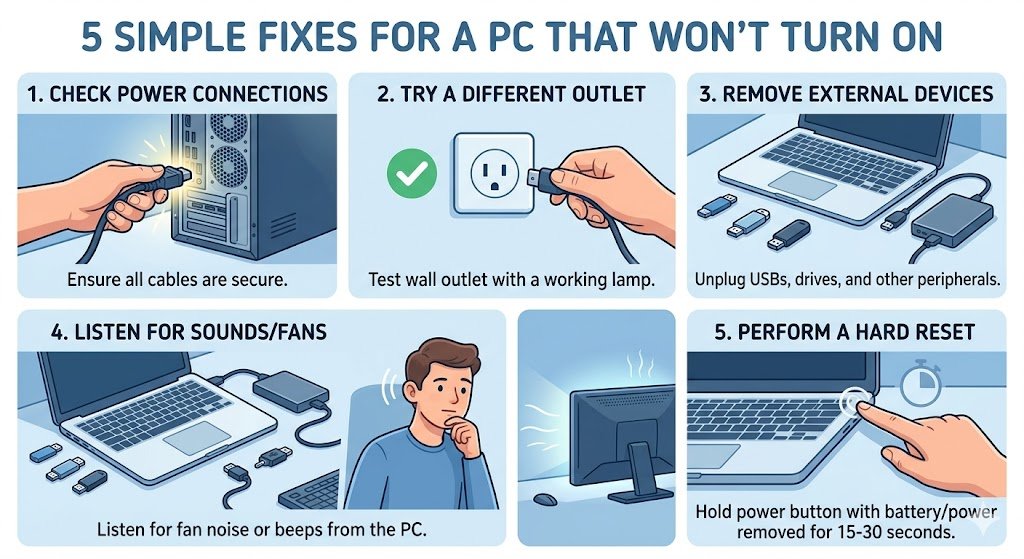
Fix #1: Check Power Source and Connections
This is the most common cause for computer startup issues.
What to do:
- Make sure the power cable is firmly plugged in
- Try a different wall socket
- If using a power strip, bypass it and plug directly into the wall
- Check for loose charger connections (especially laptops)
For laptops:
- Ensure the charger LED (if available) is on
- Try charging for 10–15 minutes before turning it on
Why this works:
Sometimes the issue is not the computer—it’s simply no electricity reaching it.
Fix #2: Perform a Power Reset (Hard Reset)
A power reset clears temporary electrical glitches to help restart computers.
Steps for laptops:
- Disconnect the charger
- Remove the battery (if removable)
- Hold the power button for 20–30 seconds
- Reconnect charger (without battery if possible)
- Try turning it on
Steps for desktops:
- Unplug power cable
- Hold power button for 20–30 seconds
- Plug back in and restart
Why this works:
It drains leftover electricity inside the system and resets internal power circuits.
Fix #3: Check the Display (It May Be On Already)
Sometimes the computer is actually running—but the screen is blank.
What to check:
- Listen for fan noise or startup sounds
- Check keyboard lights (Caps Lock / Num Lock)
- Shine a flashlight on the screen (laptop)
For desktops:
- Check monitor power light
- Ensure HDMI or VGA cable is properly connected
- Try a different display cable or monitor
Why this matters:
Many users think the computer is dead when it is actually a display issue.
Fix #4: Disconnect External Devices
External devices can sometimes stop startup.
Remove everything except power:
- USB drives
- External hard drives
- Printers
- Memory cards
- Game controllers
Then try turning the computer on again.
Why this works:
A faulty USB device can block the boot process or cause power conflicts.
Fix #5: Look for Signs of Hardware Failure
If nothing works so far, check for signs of deeper issues.
Warning signs:
- No lights or sound at all
- Burning smell
- Repeated clicking or beeping
- Power turns on then immediately off
What it could mean:
- Faulty power supply (desktop)
- Dead motherboard
- Failed battery or charger
- RAM issue
At this stage, professional repair may be needed.
Bonus Tip: Try a Different Charger or Power Cable
This is often overlooked for computer not turning on.
- Laptop chargers can fail internally without visible damage
- Desktop power cables can break inside insulation
If possible, test with a known working charger or cable.
When You Should Stop Troubleshooting
Stop DIY fixes if:
- You smell burning or see sparks
- The system powers on and off repeatedly
- You recently had liquid damage
- There are loud electrical noises
At this point, continuing can cause more damage.
How to Prevent This Problem in the Future
A few simple habits can resolve computer not turning on :
- Use a surge protector
- Avoid cheap or damaged chargers
- Keep laptop battery healthy (don’t always drain to 0%)
- Clean dust from vents regularly
- Shut down properly instead of forcing power off
Conclusion: Most “Dead” Computers Are Not Dead
If your computer is not turning on, do not panic.
In most cases, the issue is:
- Power supply
- Charger or cable
- Temporary system glitch
- Loose connection
By following these 5 quick fixes, you can solve the majority of startup problems at home without tools or technical knowledge.
If none of these steps work, then it is time for a professional diagnostic—but at least now you know you have tried the most effective solutions first for computer not turning on.